 SCRYWOW
ScryWoW › Add-on features › Quest sidebar tabs
ScryWoW add-on · Questing & leveling
Quest sidebar tabs
A slim row of tabs on top of the game's own quest tracker: your quests, the best XP near you, quest rewards worth chasing, your plan and dungeon quests.
What it does
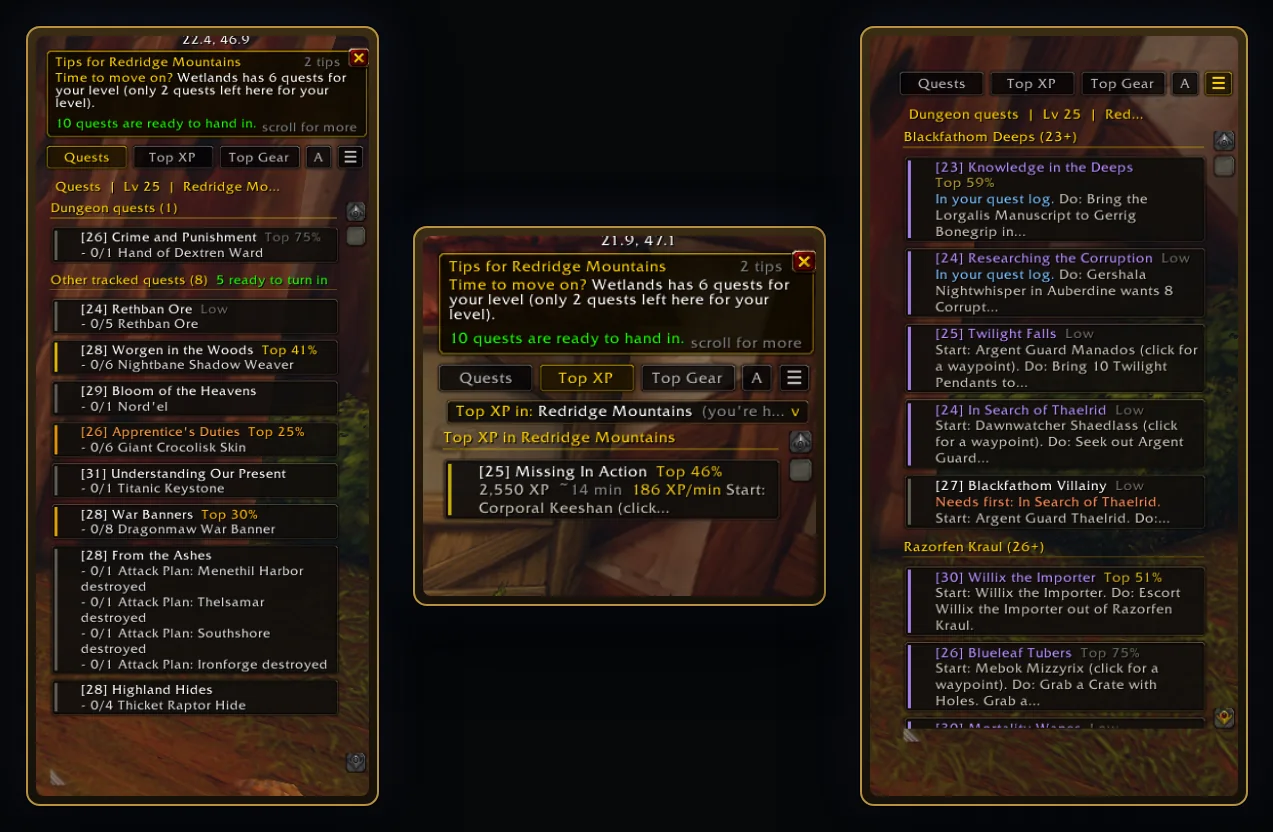
ScryWoW doesn't replace your quest tracker. It adds a row of tabs above it. Quests is the game's normal tracker, exactly as you know it. Click another tab and a list takes its place in the same spot; click Quests and your tracker is right back where it was.
Top XP lists the quests that give the most XP for the time they take, in your zone, in your log or still to pick up. Click one for a waypoint. The line under the tabs is a dropdown, so you can check another zone before you head out.
Top Gear lists quest rewards you can actually use, with the stats your spec wants. Upgrades over what you're wearing come first. You can check other zones and dungeons from its dropdown too.
My plan shows the plan you built on the website, step by step. Dungeons lists dungeon quests for your level, grouped by dungeon, with where to start and what to do first.
By default the sidebar looks like the game's own tracker: no dark panel, gold quest titles, plain tabs. Drag it wider and more tabs show up; the rest stay in the ≡ menu.
A small tips panel can sit above the tabs: when another zone has better quests for your level, mobs here your class struggles with, dungeon quests you haven't picked up and quests ready to hand in. It stays one size and scrolls with the mouse wheel, so it never grows over your minimap.
How to use it
- Install the add-on and log in. The tabs appear above your quest tracker.
- Click a tab to switch. Click a quest in Top XP or Top Gear for a waypoint to it.
- Open the ≡ menu next to the tabs for more views and every option.
- Left-click the ScryWoW minimap button to hide or show the whole sidebar.
Good to know
- Quest-item buttons (the usable item next to a tracked quest) only exist on the game's own tracker, so use the Quests tab when you need one.
- Top Gear and My plan use the character you made on the website. Make one first for the best results.
- Leveling for the stories? Pick the Scenic leveling style on the website and Top XP becomes Fun: the quests, dungeons and places players remember most around your level.
- Under the quest log there's a bar of tracking buttons: Untrack all, then track just your Top XP, Top Gear, Class or Dungeon quests.
Or download it here. Free, no ads.
Related features
Quest value (Top x%)
Tag quests by the XP they give for the time they take, so the quick wins stand out.
Dungeon quests
List the dungeon quests for your level and pin where each chain starts.
Your plan in the game
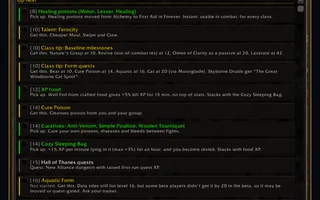
Bring the plan you built on the website into the game, step by step.
Clean screen in combat
Fade chat, the XP bar, the sidebar and the damage meter during fights, if you want.
Craft your own path
ScryWoW doesn't try to replace your other add-ons. It keeps the game's own look, adds a little where it helps, and every extra has its own off switch. Start with a plan for your character, then take it into the game.